

Setting up an iPhone for Apple Family
Setting up an iPhone for Elevated Permissions with Apple Family or Supervised Mode
Apple Family can be used to set up a child's iPhone for proper parental control features.


There are some features apps can't use without elevated permissions, like automatically capturing screenshots or adding a highly restrictive network filter that can completely disable the iPhone's internet connection. Apple doesn't allow normal iPhones to use these permissions unless either:
- The currently signed-in Apple account has an age less than 18 years old
- Supervised mode has been enabled
It is possible to set up an iPhone to combine both options , but only one of these needs to be true.
Choosing an Approach to Enable Elevated Permissions
There are a few different approaches that you can consider when setting up an iPhone correctly.
Approach 1: Enable Supervised Mode
This is the ideal approach if:
- You're an adult self-managing your own iPhone and don't have an accountability partner
- You're a parent with a child who occasionally uses your iPhone (your child doesn't have their own iPhone or iPad)
The traditional approach to enabling supervised mode requires a full device reset, and it's often difficult to restore data. However, Tech Lockdown members can follow these instructions to enable Supervised Mode in 10 minutes, without any data loss:
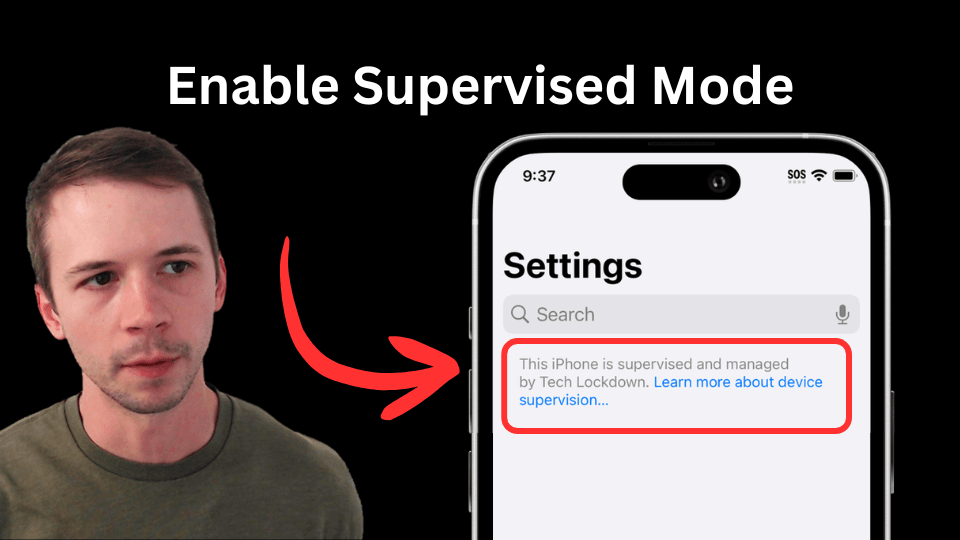
Supervised Mode opens the door for more advanced restrictions for adults, and can be set up as a much more reliable alternative to Screen Time that is very difficult to disable.
Approach 2: Verify Apple account age and settings
Parents can follow the same instructions in this video:
These instructions work for both the LivingRoom app for Families and the Gertrude app for iOS.
Frequently Asked Questions
What are the key differences between Standard (18+), Teen (13-17), and Child (12 and under) Apple Accounts?
Standard Apple accounts (accounts with an age above 18 years) have full access to all settings, purchases, and more. You can restrict certain features with Screen Time, but if you choose to keep your account a standard one, you can still use Supervised Mode without any issues.
Teen Apple accounts (accounts with an age between 13 and 17 years) aren't obviously different from Standard accounts. However, this kind of account can join a Family Group and "forfeit" control over their account to the Family Organizer. However, the Teen Account can still choose to leave the Family Group at any time.
Child Apple accounts (accounts with an age below 12 years) are much more tightly controlled by Apple. A Child account must always be a part of a Family Group, and can only be transferred to another Family Group with the help of the Family Organizer. A Child account can't change certain settings on their account without the approval of the Family Organizer. This includes the ability to change it's age; both the Child and the Family Organizer can't do this directly without waiting for the Child account's 13th birthday.
What is a "Family Organizer"?
A Family Organizer is the main "parent" or "guardian" in a Family Group. They are always a Standard Account (above 18 years) and can make new child accounts, view and change certain Screen Time restrictions for members of the Family Group, and share subscriptions with members of the Family Group.
What is a "Family Group"?
A Family Group is a group of related Apple accounts that share subscriptions or restrictions. Different types of Apple Accounts will have different restrictions that could be enabled, and the Family Organizer can help manage Teen accounts and directly oversee Child accounts.
Why choose Supervised Mode over Apple's Parental Controls?
Supervised Mode allows you to more directly customize and lock restrictions on an iPhone than Screen Time and parental controls. There is some overlap between the two, so you could combine both restrictions at the same time with little chance of conflict.
Parental Controls and Screen Time are intended for parents and have these features:
- App limits and restrictions for Apps based on age ratings
- The ability to block websites in Safari
- Reporting of Screen Time and app usage of child to parent
- Communication limits and Communication Safety
- Downtime schedules
- Lock iPhone settings with a PIN
Supervised Mode is intended for businesses or schools. Because of this, its priorities are a bit different, so it has these additional features:
- Block Apps from the App Store with Supervised App Blocking and age ratings
- Protections for content-filtering VPNs
- Enforcement of iPhone DNS settings for the entire device without the possibility to disable
- Supervised website blocking
Can Supervised Mode be Combined with Apple Parental Controls?
In most cases, they can be combined effectively .
You can combine certain parental control features like app limits, downtime, and communication safety with supervised restrictions like supervised app blocking, supervised web blocking, and enforced VPN profiles.
Some settings could conflict with each other, but generally, iPhones with both parental controls and supervised mode tend to choose the most restrictive option if two settings conflict. There are very rare cases where this would be a problem, but it's surprisingly well-built.
As a Family Organizer/Apple parent, you can also see additional Screen Time data or make changes to parental controls for your children remotely. Supervised Mode is best used for restrictions that rarely need to change.
How can I prevent the age for my Apple account from being changed later?
This can only be done if, either:
- The age for an Apple Account is below 13 years old, in which case, that account must age naturally.
- Supervised mode is enabled on the iPhone. In which case, you can restrict changes to account details from the Settings app and block access to Apple's website.