

Parents Guide to Managing and Restricting a Family-Shared iPad
Parents may want to set up a shared family iPad, and should consider additional approaches beyond Screen Time for the best results.


It’s not uncommon for families to have a shared iPad for everyone to use at home, but parents might wonder if it’s possible to monitor that iPad or even detect sensitive content that might be displayed onscreen. A good place to start is Screen Time or Apple Family Sharing, although this often doesn’t work well if multiple people need to use the device.
A much more comprehensive approach is to use screenshot monitoring so you can review all activity more effectively. This goes beyond Screen Time and shows parents exactly what family members see on that iPad.
Promote Healthy Habits with Screen Monitoring
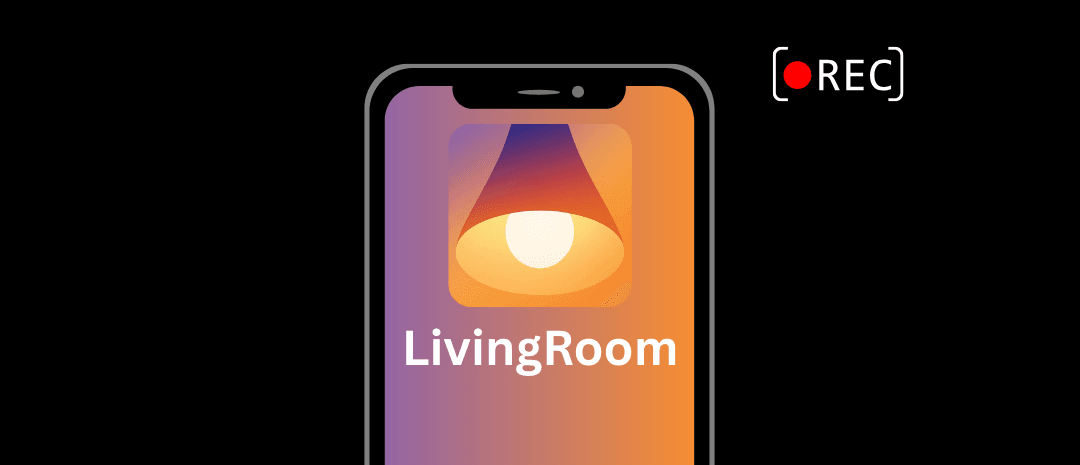
Our recommendation is to use the LivingRoom for Families app to monitor the screen of your shared family iPad because it includes automatic nudity detection by default, and it encourages intentional use of that iPad each time someone uses the device.
LivingRoom for Families uses a screen recorder that needs to be enabled each time an iPad is used, and this sets expectations and reminds whoever is using the iPad with an indicator.
Each time someone uses the iPad, they need to enable LivingRoom and enable the Screen Recorder. Otherwise, the internet for that iPad is completely blocked, and most apps can't be opened:
This is how LivingRoom sets expectations and encourages someone to use the iPad in a responsible way before they've had a chance to do anything yet.
After activating LivingRoom, a constant recording indicator is displayed near the top of the iPad's screen:
LivingRoom for Families is compatible with both iPhones and iPads; some of our screenshots are from iPhones, but this should look very similar to what you should expect on iPads.
Screenshots can then be reviewed from LivingRoom's admin dashboard:
Parents might still want to restrict certain apps preemptively, so they could also set up Screen Time to enforce general restrictions on that shared iPad.
Lock iPad with Screen Time Settings
You might check over the Screen Time restrictions that have already been enabled on your iPad by opening the Settings app and going to Screen Time.
The first thing we recommend is locking Screen Time restrictions behind a passcode.
(1) Enable Activity Monitoring in Safari and for apps
Anyone using the iPad (parents and children) can see which apps have been used or even which websites were visited in Safari by going to App & Website Activity. You might make sure this is enabled so you can review activity.
See additional ways to monitor a kid's iPhone ; most of the advice should also apply to an iPad.
(2) Restrict the App Store
Parents might also want to restrict the App Store so that new apps can’t be downloaded without approval, and this can be done by going to Content & Privacy Restrictions (make sure this is turned on first) > iTunes & App Store Purchases. On this screen, make sure that Installing Apps and In-app purchases are not allowed, and you might also consider requiring the password for the Apple account before downloading any new apps.
There are also ways to block apps without disabling the App Store instead.
(3) Block sensitive websites by default or block all but a narrow selection of websites
From the Screen Time menu, go to Content & Privacy Restrictions > App Store, Media, Web, & Games > Web Content to manage which websites are allowed on this iPad. At a minimum, we recommend selecting Limit Adult Websites.
You might choose Only Approved Websites if you’d like the most control over what kind of content can be accessed on this iPad.
See additional ways to block apps on iPhones ; most of this advice also applies to iPads.
Consider a Dedicated Child’s or Shared Apple Account
Parents might also want to remotely manage the iPad, keep track of its location, or have more control over the App Store. To do this, we recommend parents create a new child profile that is dedicated to shared devices only and set up Apple Family Sharing . See also our dedicated guide: Block Safari on a Child's iPhone or iPad .